
Utility HUD
Utility HUD enhances your Minecraft Bedrock gameplay by adding a range of practical overlays and quick-access features directly to your HUD. Designed primarily with PvP in mind, this pack introduces improvements usually unavailable without additional addons, now accessible on both PC and mobile platforms.
Key Features
- Displays armor durability on HUD
- Shows offhand slot and mainhand item durability, including while in inventory
- Potion effects overlay for easy monitoring
- Quick swap functionality for offhand items
- Fast equipping of totems
- Item counters for free inventory slots, golden apples, ender pearls, and totems
- Attack crosshair for improved combat awareness
How to Use
PC
- Press E after entering your world to activate all HUD features. Note: If potion effects are active, press Z first to display the potion effects overlay, then press E. Ensure your inventory is closed before doing this to avoid issues.
- Toggle inventory visibility with the Tab key.
- Close the inventory by pressing Esc. Remember to close the inventory before opening any container such as chests or villager trade interfaces.
- Use F1 + number keys (1-9) to swap items between your hotbar and offhand slot.
- Press 1 + F1 to quickly equip a totem from your inventory or hotbar.
- Press F8 + number keys (1-5) to toggle individual features and bring up a menu showing available commands.

- Since F1 and F8 are normally reserved for hiding the HUD and toggling the paper doll, use 2 + F1 and 2 + F8 respectively to perform those actions.
- If your cursor loses focus, pressing Esc will restore it. To forcibly close the potion overlay or inventory screen, press 3 + F1.
Mobile
- This pack requires the Classic UI; the Pocket UI is not compatible.
- Open your inventory to reveal a new button above the inventory icon. Tap this button to toggle the inventory display. To close it, tap the close button located beside the help icon. Note: Open the effects screen first if you have active potion effects.
- Close the inventory by tapping the close button in the top-right corner. You must close inventory screens before accessing containers like chests or villager trades.
- To swap items between your hotbar and offhand, tap the swap button, then select the item to exchange.
- Use the totem button to quickly equip a totem. This button can be dragged to a preferred spot on the screen but will reset each time you reload the world unless configured otherwise.
Configuration
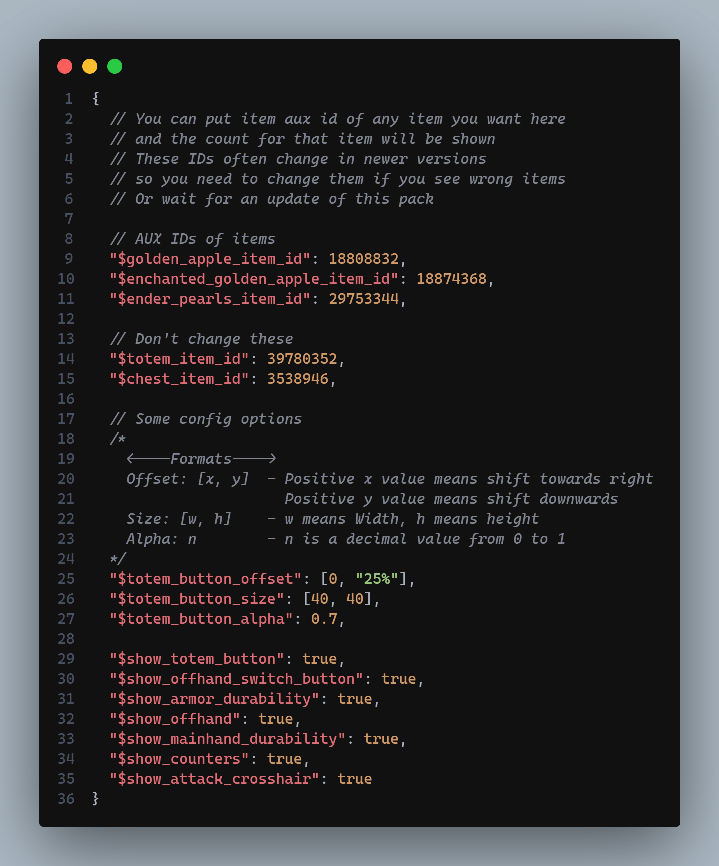
Customization options are available in the _global_variables.json file located inside the UI folder of the pack. Descriptions within the file explain each adjustable setting.
Note: Counts for Golden Apples and Enchanted Golden Apples are combined.
Installation
Install the pack as you would any other resource pack. Activate it in your Minecraft settings for the desired world or globally as needed.
Additional Information
- There are two subpacks available: Default with all features enabled, and Without Counters which disables item counters to reduce HUD lag.
- You are allowed to modify this pack for personal use only.
- Reuploading or using the code without permission is prohibited.
Screenshots & Video
Download Utility HUD
Supported versions
26.30 26.20 26.10 26.3 26.0 1.21
Supported versions
26.30 26.20 26.10 26.3 26.0 1.21
Supported versions
26.30 26.20 26.10 26.3 26.0 1.21
Supported versions
26.10 26.3 26.0 1.21
Supported versions
26.10 26.3
Supported versions
26.10

 3.00/5
 0 Comments