
The Ty-el’s Settings Overlay UI Pack
20.02.2026
The Ty-el’s Settings Overlay UI Pack enhances the Minecraft Bedrock Edition settings interface by adding convenient on-screen controls such as a camera perspective toggle, an adjustable FOV slider, and quick toggle buttons. Designed for touch-enabled devices, this pack integrates seamlessly with most texture packs and provides a more interactive HUD experience while playing.
Installation and How to Use
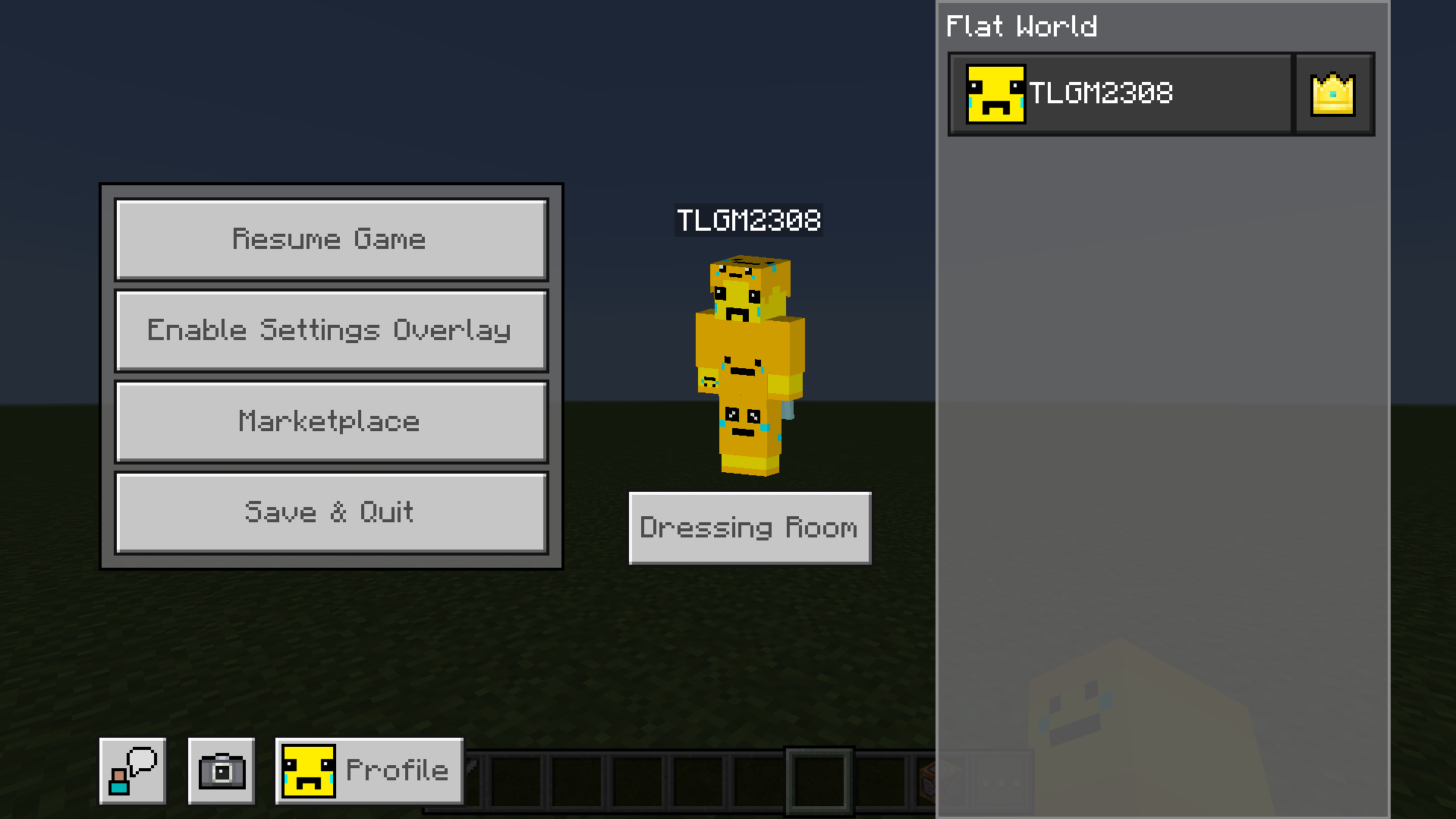
- Enter any Minecraft world, realm, or server and open the Pause Menu by tapping the Pause button.
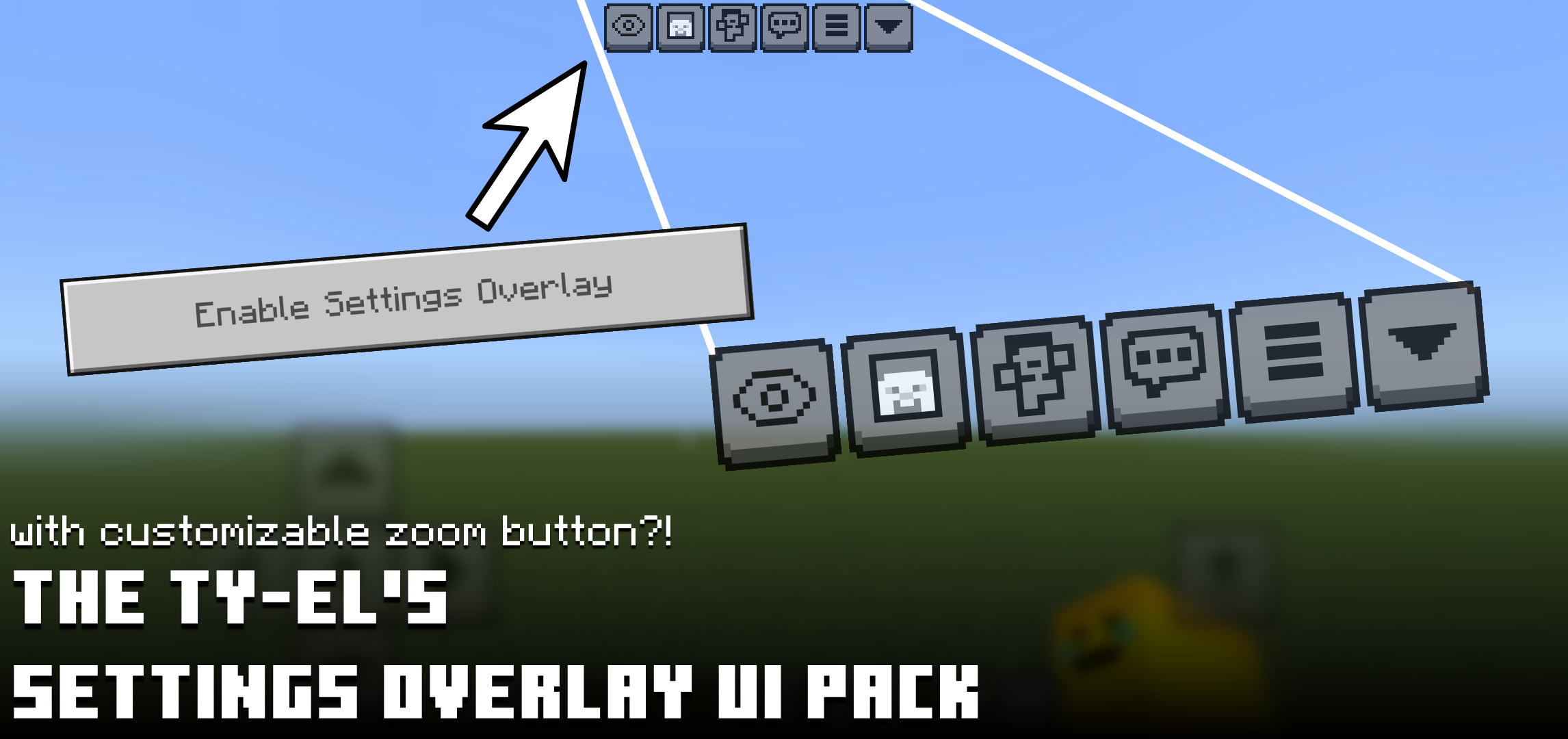
- Tap the “Enable Settings Overlay” button (this replaces the standard “Settings” or “Options” button depending on your current texture pack).
- Wait a moment for the overlay to load; this may take longer the first time you activate it in a session.
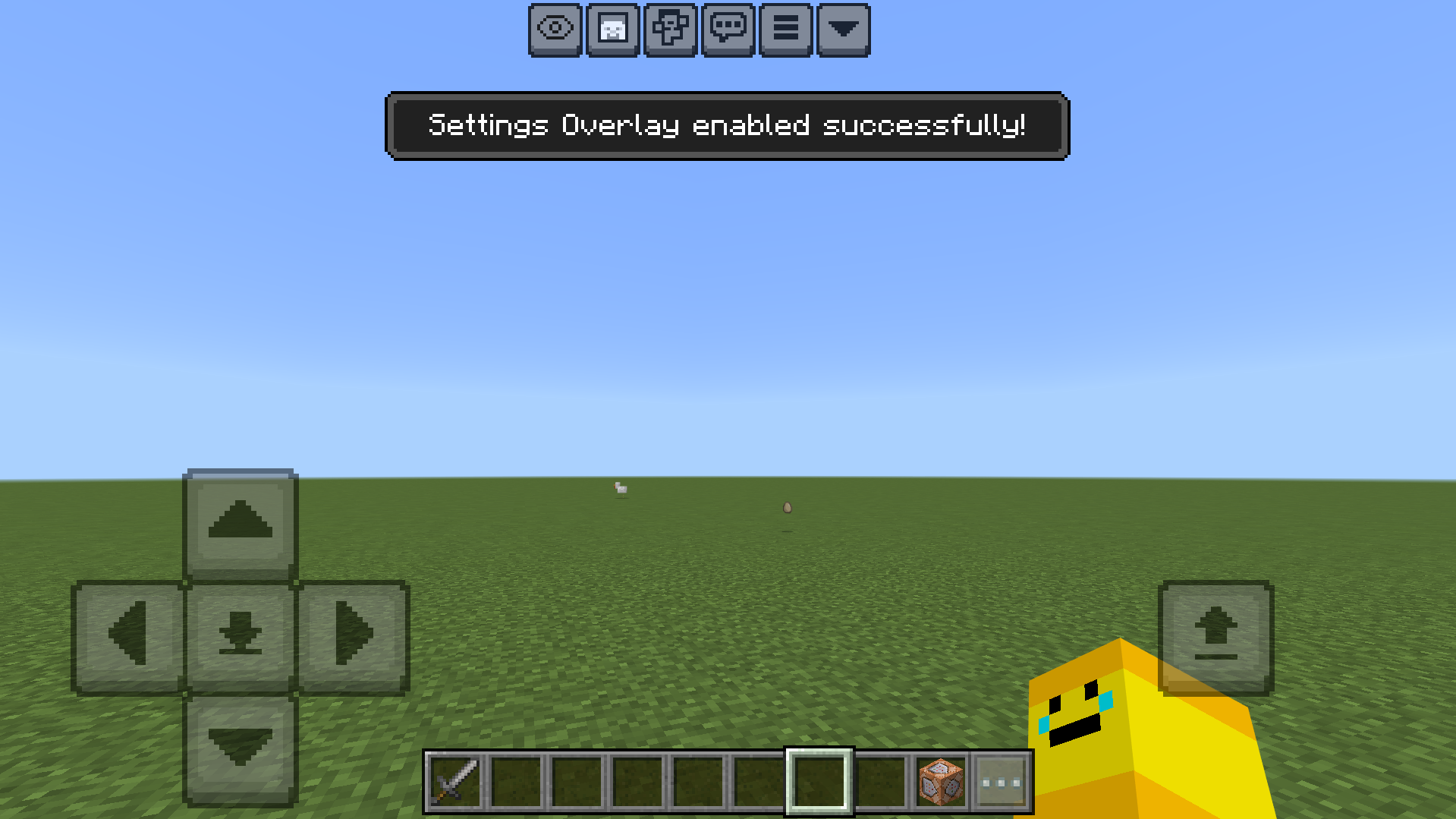
- Once activated, a confirmation toast will appear, and new buttons will be added to the top of your HUD for easy access.
Requirements and Compatibility
- Requires Minecraft version 1.20.40 or later for full functionality. Earlier versions may not support all features, especially Spectator Mode controls.
- Only works on devices with touch input, such as smartphones, tablets, or touch-enabled PCs.
- Compatible with nearly all texture packs; however, ensure this pack is placed beneath other resource packs in the pack list for proper layering.
- Not recommended for low-performance devices due to the additional rendering load of the overlay interface.
Key Features
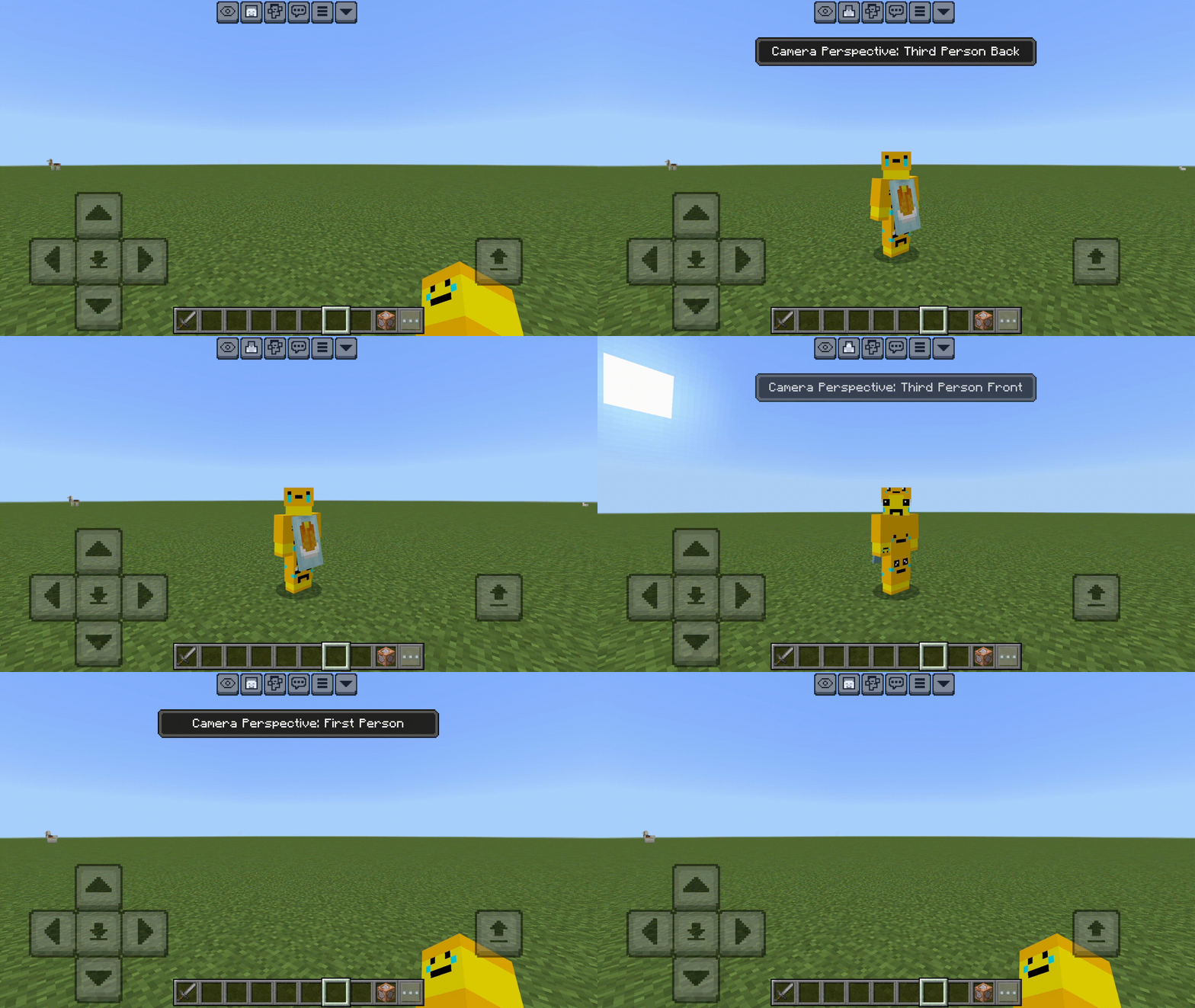
Camera Perspective Toggle
- Access a HUD button to cycle through camera views (first-person, third-person front/back) without opening the settings menu.

FOV Quick Toggle (Experimental)
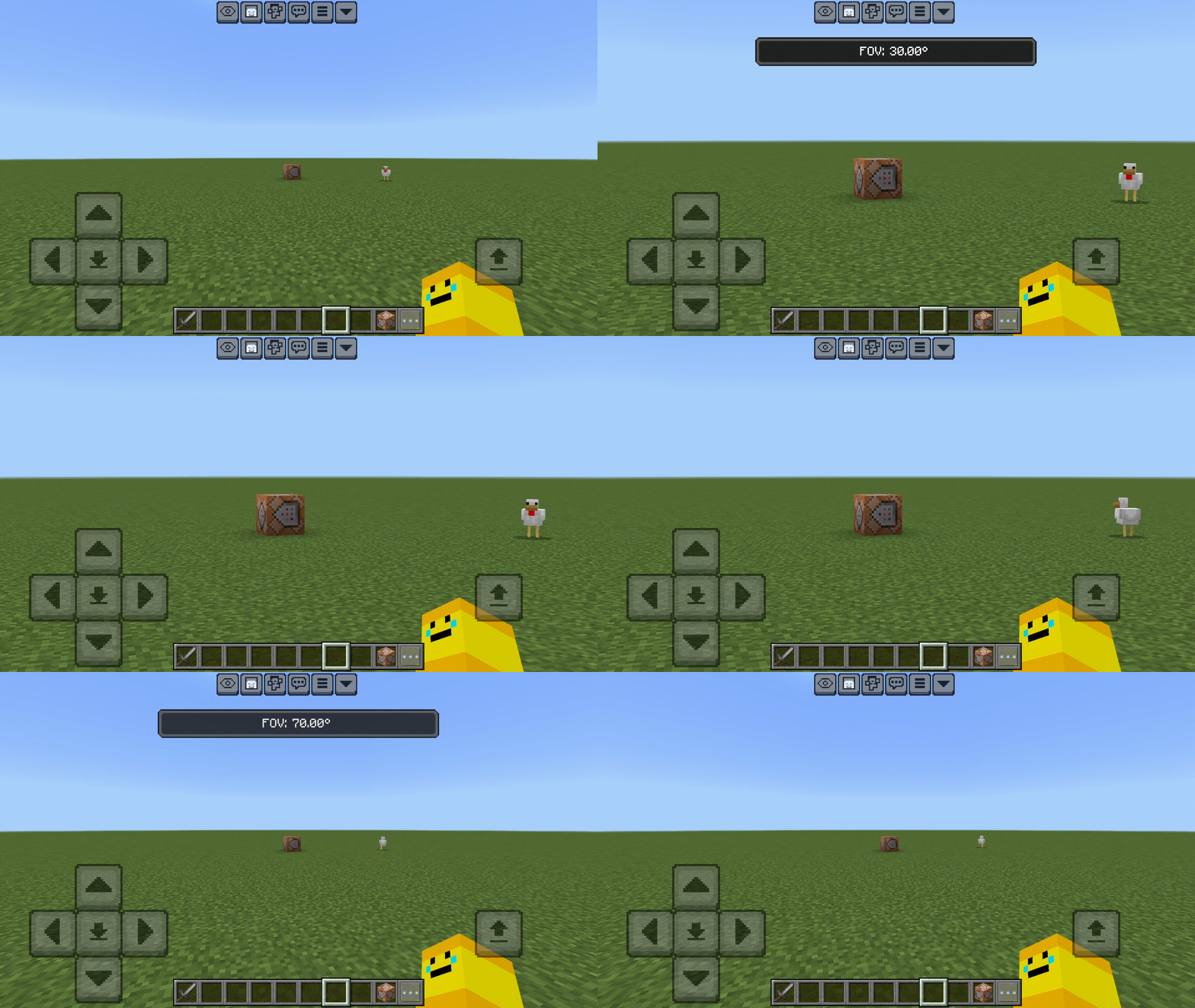
- Toggle between two preset field-of-view values quickly using a dedicated HUD button.
- This feature is off by default due to rare crashes; enable it via pack settings under “[EXPERIMENTAL] FOV Quick Toggle” if desired.

Quick Settings Menu

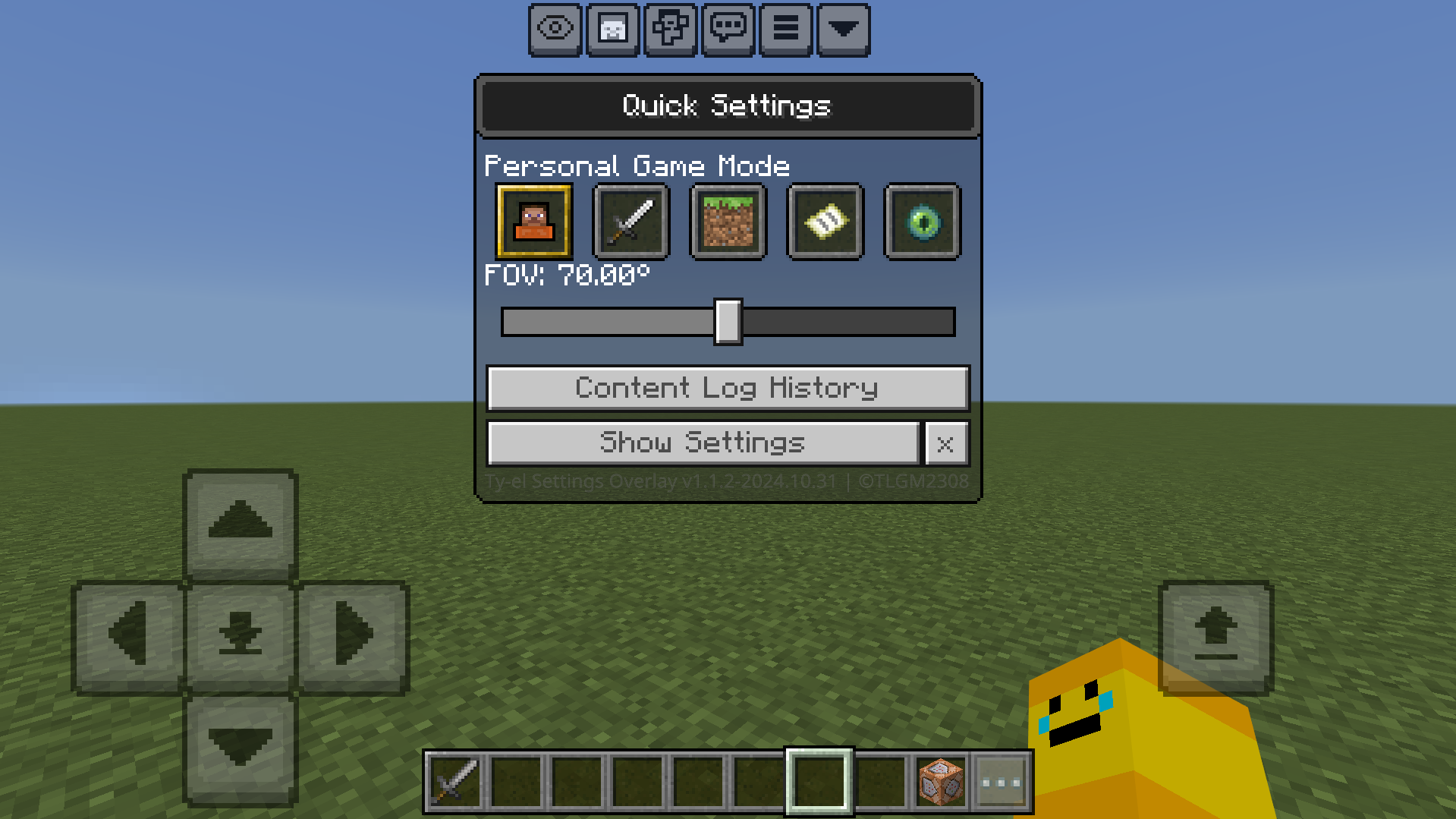
Customization
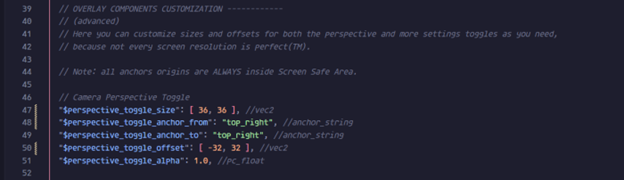
Players can adjust button size, position, and transparency by editing the “/ui/_global_variables.json” file with a text editor. This customization helps accommodate different screen resolutions and GUI scale preferences. The “Overlay Components Customization” section contains variables for:
- Camera Perspective toggle
- FOV Quick Toggle button, including preferred and toggled FOV values
- Settings menu toggle buttons
- Quick Settings panel (size adjustment not supported)
- Escape Spectator toggle (available only if experimental input flag is enabled)
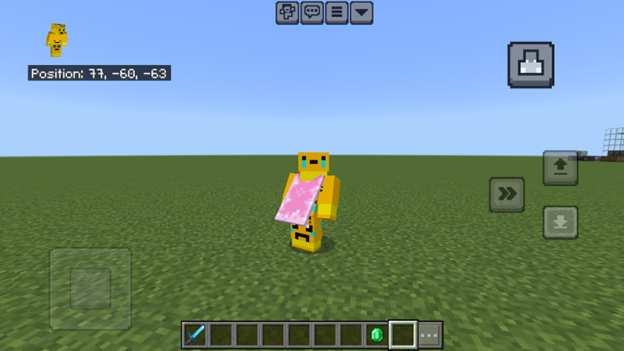
Example: Relocating the Camera Perspective toggle to the top-right corner with larger buttons.
Sample code snippet for customization:
Known Issues and Notes
- The overlay does not activate automatically upon entering a world; it must be enabled manually each session.
- In the in-game Settings Screen, the on-screen D-Pad and controls remain visible due to the overlay’s design.
- Settings Overlay will close automatically when triggering “Entering the Nether” or “Entering the End” screens or upon leaving worlds and must be re-enabled manually afterward.
- Due to a game bug, UI inputs are disabled in Spectator Mode; the overlay disables itself automatically and provides instructions to exit Spectator.
- Using “Customize Touch Controls” alongside the overlay may cause minor visual glitches; closing both and reopening the overlay resolves these issues.
- Some settings changes apply only after closing and reopening the overlay.
- Avoid opening multiple instances of the overlay simultaneously to prevent performance degradation.
Terms of Use
You are free to:
- Create content related to this pack with proper attribution.
- Customize and share your configuration files.
- Modify the pack for personal use only.
You may not:
- Claim the pack’s code as your own or redistribute modified versions publicly.
- Upload this pack to other sites or app stores without permission.
- Create content without acknowledging the pack’s origin.
- Use this pack in third-party projects without clarifying compatibility.
Ty-el Settings Overlay v1.1.2 [Main]
[62.31 KB]